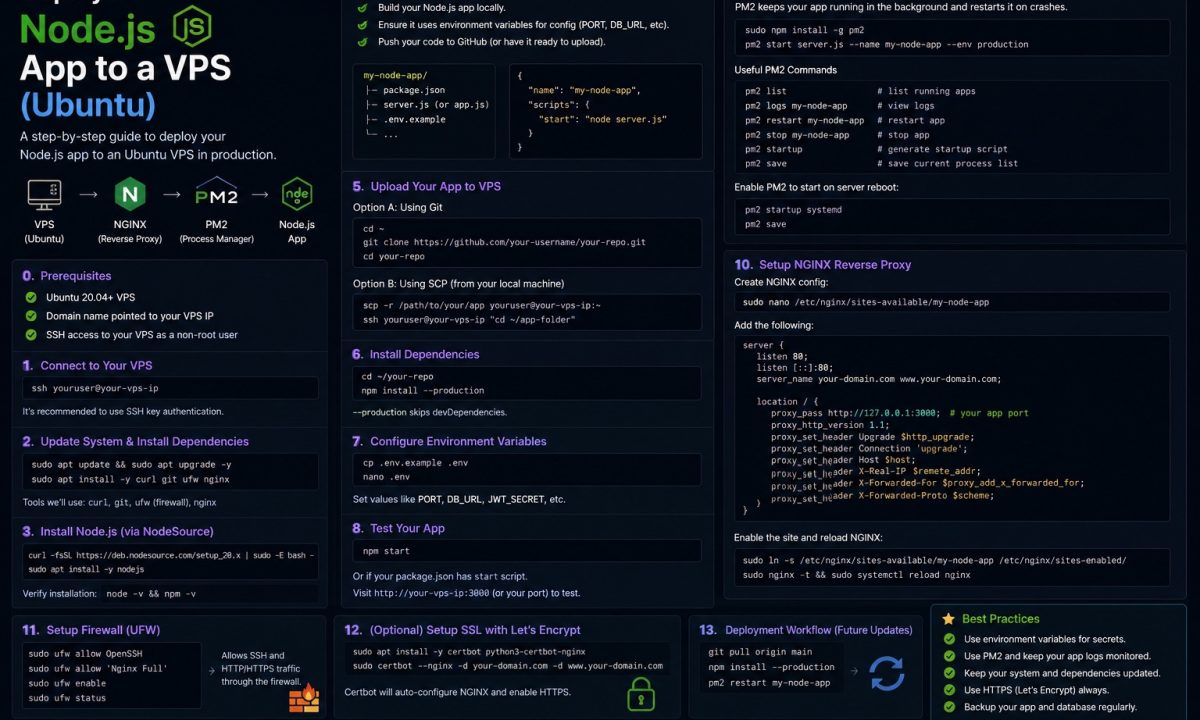
You just spun up a $6 droplet. Fresh Ubuntu 24.04, one IPv4 address, root password in your inbox, and an app on your laptop that runs fine with npm start. The gap between those two things is where most first deploys go sideways — you SSH in as root, run your app in a terminal, close the laptop, and three hours later the process is gone and so is your site.
Safe VPS path
A safe Node.js VPS deployment on Ubuntu starts with a non-root sudo user, Node 22 from a server-friendly source, environment variables outside Git, a process manager such as systemd or PM2, nginx as the reverse proxy, HTTPS, and a firewall limited to SSH, HTTP, and HTTPS. The rollback plan matters as much as the first deploy.
This is the end-to-end path to deploy a Node.js app to a VPS on Ubuntu without that happening. A real user, a real service manager, a real firewall. I’ll show the commands that work on a clean Ubuntu 24.04 box, where staging lies to you, and how to roll back when a deploy goes bad at the worst possible time. If you’re on DigitalOcean specifically, the DigitalOcean droplet walkthrough covers the provider-side bits; this one is provider-agnostic.
One honest note up front: as of June 2026, Node 22 and Node 24 are both supported LTS lines, with Node 24 the newer default for greenfield work and Node 26 the Current release. The commands below use Node 22 because many production teams still standardize on it; if you are starting fresh, swap 22 for 24 and keep the rest of the setup the same.
Don’t deploy as root — make a sudo user first
The problem: that welcome email logs you in as root. Every process you start, every file you write, every npm package that runs a postinstall script — all of it runs with full control of the machine. One typo or one bad dependency and there’s no second account to clean up from. You also want SSH key auth, not the emailed password, which is already being brute-forced by bots within minutes of the box coming online.
SSH in once as root, create a user, give it sudo, and copy your key over:
# as root, on the fresh box
adduser deploy                 # set a password when prompted
usermod -aG sudo deploy

# copy root's authorized key to the new user (or paste your own)
rsync --archive --chown=deploy:deploy ~/.ssh /home/deploy/
Now open a second terminal and confirm ssh deploy@YOUR_IP works before you touch anything else. Keep the root session open as a lifeline. If the new login works, you’ll harden SSH to lock root out entirely near the end — but not yet, because locking yourself out of a remote box you can’t physically reach is the classic way to turn a 20-minute task into a support ticket.
From here on, everything runs as deploy.
Install Node 22 — NodeSource, not nvm
The problem: Ubuntu’s apt repo ships an older Node, and nvm (which you probably use locally) installs Node into one user’s home directory. That’s fine on your laptop. On a server it bites you the moment a systemd unit or a cron job runs as a different user and can’t find node — because it lives in /home/deploy/.nvm, not on the system PATH.
For a server, use NodeSource. It puts Node at /usr/bin/node, every user and service sees it, and you get security updates through apt upgrade like any other package. The one-liner:
curl -fsSL https://deb.nodesource.com/setup_22.x | sudo -E bash -
sudo apt-get install -y nodejs
node --version    # v22.x
npm --version
If piping a remote script into bash makes you twitch — fair — do it by hand. This is what the script does anyway: drop the signing key in a keyring, add the repo, install:
sudo apt-get install -y curl ca-certificates gnupg
curl -fsSL https://deb.nodesource.com/gpgkey/nodesource-repo.gpg.key
  | sudo gpg --dearmor -o /usr/share/keyrings/nodesource.gpg
echo "deb [signed-by=/usr/share/keyrings/nodesource.gpg] https://deb.nodesource.com/node_22.x nodistro main"
  | sudo tee /etc/apt/sources.list.d/nodesource.list
sudo apt-get update && sudo apt-get install -y nodejs
Use nvm on the box only if you genuinely need to run two Node versions side by side. For 95% of single-app servers, you don’t. (Full method docs: NodeSource distributions.)
Get the code on the box and set env vars
The problem: scp-ing a zip of your project up by hand is fine exactly once, then never again. And the .env file that lives on your laptop is not in git (it shouldn’t be), so the freshly cloned repo on the server has no database URL, no API keys, nothing — the app boots and immediately throws.
Clone over HTTPS for a public repo, or add a deploy key for a private one. Build where you’ll run:
cd /home/deploy
git clone https://github.com/you/your-app.git app
cd app
npm ci                 # ci, not install — respects the lockfile exactly
npm run build          # if you have a TypeScript build step
Then create the production env file the server-only way — write it directly on the box, set tight permissions, and never commit it:
nano /home/deploy/app/.env       # paste your prod values
chmod 600 /home/deploy/app/.env  # owner-only read/write
This is the single biggest thing that breaks in staging but not in prod, or the reverse: environment variables. Your app worked locally because your shell had DATABASE_URL exported. On the server it’s a different user, a different shell, no exports. If something boots locally and crashes on the VPS with “undefined is not a connection string,” it’s the env file 80% of the time. Once you wire a real CI pipeline, the GitHub Actions CI pipeline guide shows how to push builds automatically instead of pulling git by hand.
Keep it running — systemd or PM2
The problem: node server.js in your SSH session dies the second you disconnect, and even nohup won’t restart it after a crash or survive a reboot. You need a supervisor.
Two good answers. PM2 is the Node-native one — cluster mode across cores, log aggregation, zero-downtime reloads; the full setup lives in the PM2 production guide. systemd is already on the box, supervises anything, and is what I reach for on a single-app server because there’s nothing extra to install or update.
Here’s a systemd unit. Drop it at /etc/systemd/system/myapp.service:
[Unit]
Description=My Node app
After=network.target

[Service]
Type=simple
User=deploy
WorkingDirectory=/home/deploy/app
EnvironmentFile=/home/deploy/app/.env
ExecStart=/usr/bin/node /home/deploy/app/dist/server.js
Restart=on-failure
RestartSec=5
# don't let a crash-loop hammer the box
StartLimitIntervalSec=60
StartLimitBurst=5

[Install]
WantedBy=multi-user.target
Enable it, start it, watch the logs:
sudo systemctl daemon-reload
sudo systemctl enable --now myapp
systemctl status myapp
journalctl -u myapp -f      # live logs, Ctrl-C to exit
enable is the word that matters — it’s what brings the app back after a reboot. Skip it and your site is fine until the first kernel update reboots the box at 4 a.m. and never comes back up. EnvironmentFile is how the unit reads that .env without you hardcoding secrets into a file under /etc.
Put nginx in front and add HTTPS
The problem: your Node app listens on port 3000. You do not want users hitting http://your-ip:3000 — that’s no TLS, no clean domain, and your app process is suddenly internet-facing with nothing in front of it. Put nginx between the world and Node so Node only ever binds to 127.0.0.1:3000 and nginx handles 443.
A minimal reverse-proxy server block at /etc/nginx/sites-available/myapp:
server {
    listen 80;
    server_name example.com www.example.com;

    location / {
        proxy_pass http://127.0.0.1:3000;
        proxy_http_version 1.1;
        proxy_set_header Upgrade $http_upgrade;
        proxy_set_header Connection 'upgrade';
        proxy_set_header Host $host;
        proxy_set_header X-Real-IP $remote_addr;
        proxy_cache_bypass $http_upgrade;
    }
}
sudo ln -s /etc/nginx/sites-available/myapp /etc/nginx/sites-enabled/
sudo nginx -t          # test config before reload — always
sudo systemctl reload nginx
For TLS, certbot is still the path of least resistance. Install via snap and let it edit nginx for you:
sudo snap install --classic certbot
sudo ln -s /snap/bin/certbot /usr/local/bin/certbot
sudo certbot --nginx -d example.com -d www.example.com
It writes the 443 block, sets up the redirect, and installs a renewal timer — you won’t touch it again unless the config changes. The proxy and header details (websockets, buffering, timeouts) get their own treatment in the nginx reverse proxy guide. Certbot specifics live at certbot.eff.org.
Lock the firewall to 22, 80, 443
The problem: by default every port on the box is reachable. Your app, your database if you installed one locally, anything you start for “just a quick test” — all exposed. ufw fixes this in four commands, and the order is non-negotiable on a remote box.
Set defaults, allow SSH first, then the web ports, then enable:
sudo ufw default deny incoming
sudo ufw default allow outgoing
sudo ufw allow OpenSSH        # do this BEFORE enabling, or you lock yourself out
sudo ufw allow 'Nginx Full'   # opens 80 and 443
sudo ufw enable
sudo ufw status verbose
OpenSSH and Nginx Full are named application profiles — cleaner than memorizing port numbers, and they’re already on the box. Note what’s not here: port 3000. Your Node app doesn’t need to be open to the world; nginx reaches it over localhost. (The safe-ordering rule and profile list come straight from the Ubuntu Server firewall docs.)
This is the other great staging-vs-prod trap. Staging often has no firewall, so hitting :3000 directly works there and you assume prod will too. Then you enable ufw in prod, the port’s closed, and you spend twenty minutes convinced the app crashed when it’s just the firewall doing its job. If a service is unreachable right after you turn ufw on, check ufw status before you touch the app.
Basic hardening that’s worth the ten minutes
The problem: the box is online and already being probed. You don’t need a security project — you need three things that stop the bulk of automated noise.
# 1. Auto-install security patches
sudo apt-get install -y unattended-upgrades
sudo dpkg-reconfigure -plow unattended-upgrades   # pick "Yes"

# 2. Ban IPs that hammer SSH with bad passwords
sudo apt-get install -y fail2ban
sudo systemctl enable --now fail2ban

# 3. Disable root + password SSH (now that your key login works)
sudo nano /etc/ssh/sshd_config
#   PermitRootLogin no
#   PasswordAuthentication no
sudo systemctl restart ssh
Do step 3 last, and only after you’ve confirmed ssh deploy@YOUR_IP works with your key. Test a brand-new SSH session before closing your current one. App-level hardening — helmet, rate limits, input validation — is a separate job; the Node API security checklist covers that side.
Deploying an update and rolling back
The problem: the deploy you ship at 5 p.m. on a Friday is the one that breaks. You need an update that’s a few commands and a rollback that’s faster.
The plain version — pull, build, restart:
cd /home/deploy/app
git fetch origin
git checkout main && git pull
npm ci
npm run build
sudo systemctl restart myapp
journalctl -u myapp -n 50 --no-pager    # eyeball it before you walk away
That works, but the rollback is “hope the last commit still builds.” Better: deploy into timestamped directories and flip a current symlink. Rollback becomes one ln and one restart.
# point your systemd WorkingDirectory + ExecStart at /home/deploy/current
TS=$(date +%Y%m%d-%H%M%S)
git clone /home/deploy/app /home/deploy/releases/$TS
cd /home/deploy/releases/$TS && npm ci && npm run build
ln -sfn /home/deploy/releases/$TS /home/deploy/current
sudo systemctl restart myapp

# broke something? point back at the previous release and restart
ln -sfn /home/deploy/releases/PREVIOUS_TS /home/deploy/current
sudo systemctl restart myapp
The recovery move when everything’s on fire and you can’t think: journalctl -u myapp -n 100 tells you why it’s down, the symlink flip gets you back to the last good release in seconds, and sudo nginx -t confirms it’s not nginx. Keep the last three or four release directories around. Disk is cheap; a 3 a.m. debugging session is not.
When managed hosting is smarter
Here’s the part the VPS tutorials skip. Sometimes the right move is to not run the box at all.
A managed PaaS — Railway, Render, Fly.io — is worth the money for a small team or a solo dev whose time is better spent on the product. You give up the $6/month price and some control; you get rid of OS patching, firewall config, certificate renewals that fail silently, and the pager going off because the disk filled with logs. If nobody on your team wants to be the sysadmin, paying $20–40/month for managed hosting is cheaper than the engineering hours a self-run VPS quietly eats. The provider comparison is over in the Railway vs Render vs Fly.io writeup.
Run your own VPS when you want the control, the cost savings at scale, or the learning. Reach for a PaaS when the ops work isn’t where your time should go. Neither is wrong — they’re answers to different questions.
FAQ
Do I really need a reverse proxy, or can Node serve port 80 directly?
Technically Node can bind to 80, but you’ll regret it. nginx gives you TLS termination, lets you run multiple apps on one box, handles static files faster, and means your Node process never has to run as root to grab a privileged port. Bind Node to 127.0.0.1:3000 and let nginx face the internet.
systemd or PM2 — which should I pick?
systemd if it’s a single app and you want zero extra moving parts; it’s already installed and supervises everything on the box uniformly. PM2 if you want Node-native cluster mode across CPU cores, built-in log management, and zero-downtime reloads without writing unit files. Both survive reboots once configured. Don’t run both supervising the same process — pick one.
Why NodeSource instead of nvm on a server?
nvm installs Node into a single user’s home directory, so a systemd unit or cron job running as another user can’t find node on its PATH. NodeSource installs to /usr/bin/node system-wide and updates through apt with the rest of your security patches. Keep nvm for local dev where switching versions matters.
My app runs locally but crashes on the VPS — where do I start?
Check environment variables first; the server has a different user and shell with none of your local exports, so a missing .env value is the usual culprit. Then check file permissions (did the deploy user actually own the files?) and the firewall (is the port you’re testing actually open?). Run journalctl -u myapp -n 50 and the error is almost always right there.
How do I roll back a bad deploy fast?
Deploy into timestamped release directories and keep a current symlink that your systemd unit points at. To roll back, repoint the symlink at the previous release and sudo systemctl restart myapp — seconds, not a frantic git bisect. Keep the last three or four releases on disk so you always have somewhere to fall back to.
Is a $6 droplet enough for a real app?
For a small-to-medium Node API serving a few thousand requests an hour, yes — 1 GB RAM and 1 vCPU handles it comfortably if you’re not doing heavy in-process work. Watch memory if you run PM2 cluster mode (each worker is a full process) or load big things into RAM. When you outgrow it, resize the droplet or move the database to its own box before you add app servers.
Should I open port 3000 in ufw so I can test the app directly?
No. Keep 3000 closed and reach the app through nginx over localhost. If you want to test the Node process in isolation, curl http://127.0.0.1:3000 from an SSH session on the box itself — that works without exposing the port to the internet. Leaving 3000 open is how an unhardened app process ends up directly reachable by every scanner on the internet.