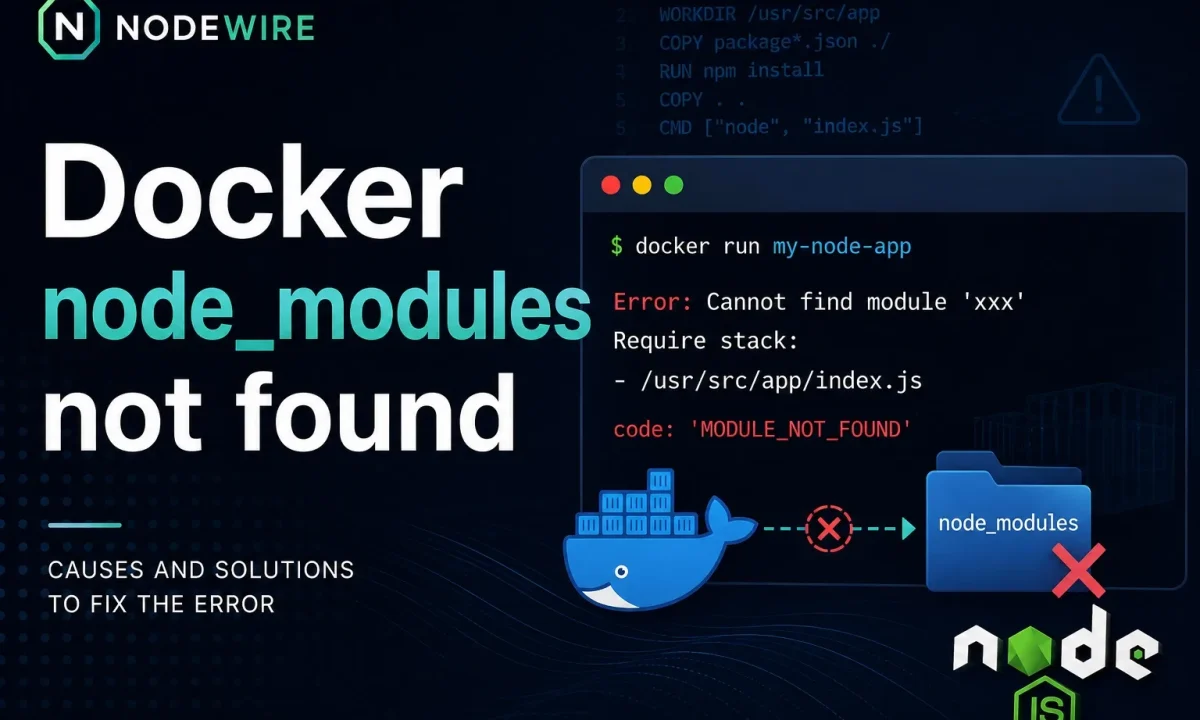
The build log is clear: npm ci ran, 400 packages added, no errors. The image built. Then docker compose up starts the container and it dies instantly with Cannot find module 'express' — a package you can see sitting in your package.json. You exec into the container, run ls node_modules, and it’s either empty or it’s missing exactly the things you need. The Docker node_modules not found problem feels like a build failure, but the build almost always worked. Something hid node_modules after the build, at runtime, and that something is usually a volume you added for convenience.
Quick fix: preserve node_modules in Docker Compose
The most common cause is a bind mount in docker-compose.yml — .:/app — that mounts your host project directory over the container’s /app, so the bind mount hides or overwrites the node_modules the image built. Fix it by adding an anonymous volume for node_modules that re-exposes the container’s own copy on top of the bind mount:
services:
  api:
    build: .
    volumes:
      - .:/app
      - /app/node_modules   # keep the image's node_modules, don't let the host hide it
This pattern is mainly for local development with hot reload. In production, do not bind mount your whole project into /app — build the image with dependencies inside it and run the container straight from that image, no source mount at all.
The two other causes: a missing .dockerignore that copies your host’s node_modules (often built for the wrong OS/CPU) into the image, and installing dependencies in a different working directory than the one you run from. All three are below.
Here’s the error, the one that sent you searching:
Error: Cannot find module 'express'
Require stack:
- /app/index.js
    at Function._resolveFilename (node:internal/modules/cjs/loader:1248:15)
    code: 'MODULE_NOT_FOUND'
Common symptoms
You’re probably hitting this exact issue if:
npm cicompleted duringdocker build, butdocker compose upfails on startup./app/node_modulesis missing or empty inside the running container (Docker Compose node_modules empty).Cannot find module 'express'appears only in Docker — the same project works locally but fails in a Linux container.- The error shows up as “Docker Cannot find module after npm install” even though the build logs say the install succeeded.
- Native packages like
bcrypt,sharp, orsqlite3fail to load after hostnode_modulesgot copied in.
Cause 1: Docker Compose bind mount hides node_modules
This is the big one. In development you mount your source into the container so edits show up without a rebuild:
volumes:
  - .:/app
That bind mount makes the container’s /app be your host folder. Whatever the image built into /app/node_modules is now hidden behind your host’s /app/node_modules — and if your host doesn’t have one (or has one built for macOS while the container is Linux), the container sees nothing usable. The build was perfect. The mount covered it up a second later.
The fix is an anonymous volume for node_modules. Docker layers it on top of the bind mount, so the container keeps the node_modules it built while still seeing your live source for everything else:
services:
  api:
    build: .
    volumes:
      - .:/app
      - /app/node_modules
The order matters less than the presence of that second line. With it, editing src/index.ts on your host still hot-reloads, but node_modules belongs to the container. This is the single most common fix, and it’s the same class of “it built fine, then runtime disagreed” gotcha behind a lot of plain Cannot find module reports.
On macOS and Windows, keeping node_modules inside the container is also faster and cleaner than relying on the host copy, because Docker Desktop runs Linux containers through a VM and syncs bind-mounted files across that boundary. For larger projects a named volume for node_modules can be more predictable than host filesystem sync.
Cause 2: host node_modules copied without .dockerignore
If your Dockerfile does COPY . . and you have no .dockerignore, Docker copies your host’s node_modules into the image. That’s the wrong-architecture node_modules in Docker problem: those packages were compiled for your laptop — macOS arm64, say — and the container is Linux. Native modules (bcrypt, sharp, anything with a .node binary) then fail with cryptic load errors, or the copy is partial and modules go missing. Always ship a .dockerignore:
# .dockerignore
node_modules
npm-debug.log
.git
dist
With node_modules ignored, the COPY brings in only your source and lockfile, and the RUN npm ci inside the image builds the packages for the container’s platform. Clean, correct, and smaller. The full layered setup is in the Node.js Docker guide, and Docker’s own Node.js language guide covers the same .dockerignore discipline.
Cause 3: npm ci and CMD run from different WORKDIR
If you npm ci in one directory and CMD runs from another, Node looks for node_modules in the wrong place. Keep a single WORKDIR and install there:
FROM node:24-slim
WORKDIR /app
COPY package*.json ./
RUN npm ci --omit=dev
COPY . .
CMD ["node", "index.js"]
COPY package*.json ./ before the rest is also what lets Docker cache the install layer, so you don’t reinstall on every source change — a deploy speed win that matters more on a real server, as covered in deploying Node.js to a VPS.
How to check why node_modules is empty in Docker
Exec into the running container and look:
docker compose exec api ls -la /app/node_modules | head
Empty or missing? It’s the bind mount (Cause 1) — add the anonymous volume. Present but a native module throws on load? It’s the wrong-architecture copy (Cause 2) — add .dockerignore and rebuild with --no-cache. Present in a different folder than your CMD runs from? It’s WORKDIR (Cause 3). Two minutes of looking saves an hour of guessing.
When to rebuild and renew the node_modules volume
The anonymous-volume fix has one trap: it works the first time, then breaks after you change package.json. If you add a new dependency and Docker still says Cannot find module, the anonymous /app/node_modules volume is holding the old dependency tree — Compose recreates containers on up but reuses existing volumes by default. Rebuild the image and renew the anonymous volume:
docker compose up --build -V # -V = --renew-anon-volumes
Or reset the project’s volumes entirely:
docker compose down -v
docker compose up --build
Use this only for local development volumes you can safely recreate. Do not run down -v blindly on a Compose project that stores database data in named volumes — it deletes those too.
FAQ
Why is node_modules empty in my Docker container even though npm install ran?
A bind mount in docker-compose.yml (.:/app) is mounting your host directory over the container’s /app, hiding the node_modules the image built. Add an anonymous volume - /app/node_modules after the bind mount so the container keeps its own node_modules.
What does the anonymous volume /app/node_modules do?
It tells Docker to keep the container’s node_modules directory as a separate volume layered on top of the bind mount, so your host folder mount doesn’t hide it. You still get live source edits from the bind mount, but node_modules stays the one the image built for the container’s platform.
Why does this come back after I add a new dependency?
The anonymous /app/node_modules volume persists across docker compose up, so it keeps the old dependency tree even after you change package.json. Rebuild and renew it with docker compose up --build -V (or docker compose down -v then up --build) so the new dependencies land in the volume.
Should I add node_modules to .dockerignore?
Yes. Without it, COPY . . copies your host’s node_modules — often built for a different OS or CPU — into the image, causing native modules to fail or files to go missing. Ignore it and let RUN npm ci build packages inside the image for the container’s platform.
Why do native modules like bcrypt fail in Docker but work locally?
Because the node_modules was built for your host (e.g. macOS arm64) and copied into a Linux container. Native .node binaries are platform-specific. Add node_modules to .dockerignore and run npm ci inside the Dockerfile so the binaries are compiled for the container.
How do I keep hot reload but not lose node_modules in Docker Compose?
Use two volumes: .:/app for live source and /app/node_modules (anonymous) to preserve the container’s modules. The first gives you reload on file changes; the second stops the bind mount from hiding the installed packages.
Why does Cannot find module appear only in Docker and not on my machine?
Your machine has a populated node_modules; the container either had it hidden by a bind mount, copied a wrong-platform version, or installed it in a different WORKDIR than it runs from. For the broader, non-Docker version of this error, see the Cannot find module guide.